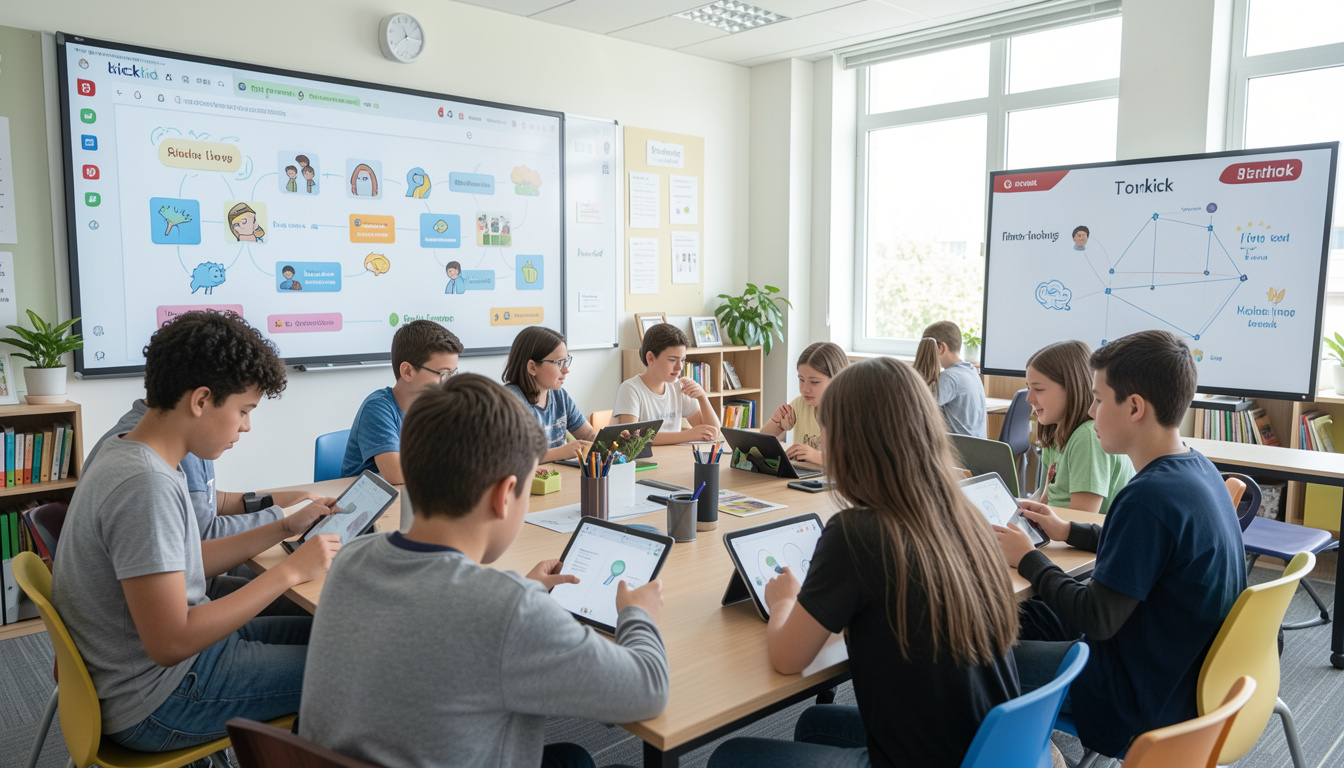
Classkick is an easy digital tool built to help every student get quick help from teachers. Modern learning moving into digital spaces creates challenges for keeping kids focused on daily tasks. Traditional paper worksheets make it hard to see who needs help during class time. This modern app changes that dynamic by letting educators watch every student screen live on one screen. You can spot mistakes instantly and give support right when learners need it most.
Using smart technology in school should make teaching simpler instead of more complicated for everyone. Classkick brings teachers and students together on a clean virtual canvas for interactive lessons. Students work at their own pace while receiving gentle guidance directly from their screens. Teachers save valuable grading hours because they grade work live as children finish each question. Let us explore everything you need to know about this helpful digital learning software today.
What Is Classkick and How Does It Work?
Classkick is a user-friendly educational app designed to create flexible digital assignments for classrooms. Teachers upload existing paper worksheets, PDF files, or fresh audio recordings to create digital tasks. Students then log in to view their work on laptops, Chromebooks, or tablet screens. Every student works on their own copy of the assignment during the lesson period.
The main power of Classkick comes from its live monitoring dashboard for busy educators. Teachers see all student screens updated live as the children type or draw answers. If a student struggles with a problem, they can raise a digital hand quietly. The teacher can then type a note or record voice guidance directly on that student’s screen.
Why Teachers Love Using Classkick in the Classroom
Teachers love using Classkick because it saves time while boosting classroom control during work time. Grading pileups disappear when you can give points and leaves notes while students complete tasks. You do not have to wait until homework is handed in next week to fix simple mistakes. Quick adjustments made during class lead to much better understanding for every child.
Another great reason educators rely on Classkick is the built-in anonymous peer helping option. Shy students often feel nervous asking questions out loud in front of their peers. Through this app, students can ask for help or help classmates anonymously and safely. This builds strong teamwork skills while keeping the classroom environment friendly, supportive, and focused on learning.
How Students Benefit from Interactive Real-Time Assignments
Students enjoy using Classkick because it makes standard classwork feel interactive, fresh, and engaging. Instead of writing on paper, children can draw pictures, record audio clips, and paste images directly into tasks. This helps different types of learners share what they know in fun ways. Learning becomes a collaborative game rather than a boring daily chore.
Immediate feedback helps students stay confident while working through tricky math or reading assignments. When students get stuck on a hard question, waiting for help leads to frustration. With Classkick, receiving a quick digital sticker or supportive note keeps momentum going. Students stay motivated to keep trying because they know their teacher is watching and guiding them.
Setting Up Your Account with Classkick Teacher Login
Getting started with Classkick teacher login takes only a few minutes from any standard browser. Visit the main website and click the signup button located in the upper right corner. You can create a new profile using your work email address or Google school account. Linking your Google account makes signing in fast and keeps your digital files organized easily.
Once your profile is set up, you can start building your first roster and digital assignment. You can organize students by class periods or small learning groups based on learning goals. Creating rosters allows you to assign custom worksheets to specific groups with just a single click. The simple dashboard layout keeps your files easy to find throughout the school year.
Easy Steps for Classkick Student Login and Access
The Classkick student login process is built to be simple so young children can join quickly. Teachers create a unique class code for every assignment created on the main platform. Students open the login page and enter that simple code along with their standard full name. They do not need complex passwords or email addresses to start working on tasks.
For schools using Google Classroom or clever logins, the entrance process is even simpler for users. Students simply click their regular portal icon to jump straight into their assigned working screens. This seamless entry path saves precious lesson time that used to be wasted entering long passwords. Kids spend less time logging in and more time learning key concepts.
Exploring the Classkick App on iPad and Web Browsers
The Classkick app for iPad offers a smooth mobile experience tailored specifically for touchscreen interaction. Younger elementary students find drawing numbers and writing words easier using a stylus or finger on iPad displays. The mobile application runs fast and supports clear voice recording features for reading practice. Downloading the app from the Apple App Store takes only a minute.
If your school uses Chromebooks or desktop computers, Classkick web works completely inside any modern browser. You do not need to install heavy software or run complex updates across computer labs. The web version matches all features found in the mobile tablet build, ensuring equal access for all. Children enjoy the same interactive tools no matter what device they use at school or home.
Key Features That Make Classkick Stand Out
Classkick includes several helpful tools that transform routine practice sheets into rich interactive lessons. Teachers can add audio files to instructions, helping early readers hear text read aloud clearly. You can also embed short video links, multiple-choice auto-graded prompts, and high-resolution images easily. These multi-media features keep content fresh and accessible for all learning styles.
- Real-time monitoring allows teachers to watch all student screens at the exact same moment.
- Digital hand raising lets students request help or ask for grading privately from their desks.
- Auto-grading features check fill-in-the-blank and multiple-choice items automatically to save time for educators.
- Custom digital stickers give students quick praise and clear feedback as they complete work.
- Audio recording tools let students speak their answers aloud instead of typing every single response.
How to Provide Instant Feedback Using Classkick
Providing instant feedback through Classkick is simple, direct, and highly effective for student growth. As you watch student progress on your main screen, click any student thumbnail to zoom in. You can write feedback using your mouse, type a message, or drop a custom sticker. The student sees your notes appear on their personal screen in real time without delay.
You can also create a library of reusable feedback stickers with custom point values attached. For example, a star sticker can give two points and say Great Job on your Math Steps. Clicking and dragging that sticker onto student pages updates their score total automatically. This keeps grading fast while giving children clear, encouraging praise right when they complete steps.
Using Classkick Web vs the Mobile Application
Choosing between Classkick web and the mobile tablet application depends on your available school technology. The web system runs inside modern internet browsers like Google Chrome, Apple Safari, or Microsoft Edge. It requires no app updates and works smoothly across various laptop models and desktop computers. This makes web access ideal for schools using standard computer carts or Chromebook devices.
The dedicated mobile app shines brightly on Apple iPad hardware in primary elementary classrooms. Touchscreens allow young children to practice handwriting, trace letters, and draw math models naturally. Both versions stay synced together in real time through secure cloud connections without losing data. Your work saves automatically no matter which platform your students use during the lesson.
Effective Teaching Strategies for Digital Classrooms
To get the most value out of Classkick, start small with simple two-page practice assignments. Let students explore the drawing tools and digital hand feature during a fun warm-up activity first. This builds student confidence with the navigation controls before introducing complex core subject lessons. Clear guidelines about digital tools keep students focused on learning goals rather than distractions.
Use the live dashboard view to group students who need extra help on similar problem areas. You can jump into small digital groups or give personalized voice notes without interrupting the entire room. Encouraging peer-to-peer virtual assistance also builds a cooperative classroom community where everyone learns together. These proactive strategies help you run a smooth, efficient, and interactive digital lesson every day.
Classkick Pricing: Free vs Pro Plans Explained
Classkick offers flexible pricing choices designed to fit individual teachers as well as large school districts. The Basic Free plan gives individual teachers full access to core real-time monitoring and assignment tools. You can create assignments, monitor students live, and give immediate feedback without paying anything at all. This free plan works well for educators testing digital instruction in their own rooms.
The Pro plan unlocks unlimited assignment storage, advanced roster syncing, and detailed school exports. School district plans offer single sign-on security, central administration controls, and custom training for entire teaching staffs. Upgrading to Pro gives schools complete long-term flexibility as their digital learning programs expand over time. Most teachers start with the free build before upgrading through their school district.
Frequently Asked Questions
Is Classkick free for teachers to use in their classrooms?
Yes, Classkick offers a generous free basic account for individual teachers. You can create digital assignments, view student screens live, and give instant feedback without spending money.
How do students join a lesson on Classkick student login?
Students go to the login screen and enter a simple class code provided by their teacher. They type their name and jump directly into the assigned lesson without needing long passwords.
Can I use Classkick on Chromebooks and regular desktop computers?
Yes, Classkick web runs smoothly inside any modern browser on Chromebooks, Mac, and Windows computers. You do not need to install extra software to access full features.
What devices support the Classkick app?
The Classkick app is available for Apple iPad devices via the App Store. Other devices like laptops, desktops, and Chromebooks access the platform through standard web browsers.
How does real-time feedback work during active lessons?
Teachers view a main dashboard showing live thumbnails of all student work screens. Clicking a thumbnail lets the teacher type notes, record voice feedback, or award digital stickers instantly.
Can students help each other using this digital software?
Yes, Classkick includes a safe, anonymous peer-helping feature that teachers can turn on. Students can answer questions or offer guidance to classmates without revealing their real names.
Conclusion
Classkick is a practical digital tool that transforms everyday classwork into a dynamic learning space. By providing real-time screen tracking, quick feedback options, and accessible design, it keeps students focused and growing. Teachers save valuable hours on daily grading while identifying struggling students before they fall behind. Whether you use iPads or Chromebooks, bringing this interactive software into your lesson plan builds a more supportive, responsive classroom for every learner. Try creating your first digital assignment today to see how instant feedback transforms student success.
Read Also More : Troozer com – The Complete Guide to Understanding and Using the Platform